Editing User Role accounts
If you want to change a user's ability to view, deposit to, or withdraw from accounts, you can edit access to accounts. Changes take effect the next time that the user logs in.
User Role Accounts page
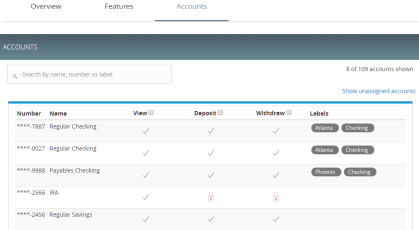
To edit accounts
- In the navigation , click or tap Commercial > User Roles.
- Click or tap the edit icon (
 ) in the desired User Role row.
- Click or tap the Accounts tab to see a list of accounts.
- Edit one or more of the following access rights by clicking or tapping Allow (
 ) or Deny (
 ):
- View: View balances and history for the account on the Home page, on the Account Details page, and in reports.
- Deposit: Deposit funds into the account. This is applicable to the ACH Receipt and ACH Collections Transaction Types.
- Withdraw: Withdraw funds from the account. This is applicable to the ACH Single Payment, ACH Payments, Payroll, Domestic Wire, International Wire, and Tax Payment Transaction Types.
- Click or tap Save. The Policy Saved page appears confirming the changes.
- Click or tap Close to return to the Accounts page. Another user may have to approve changes.
See Viewing Company Policy accounts for more information.
Note: Accounts that have lock icons have been locked by the FI and can't be edited.